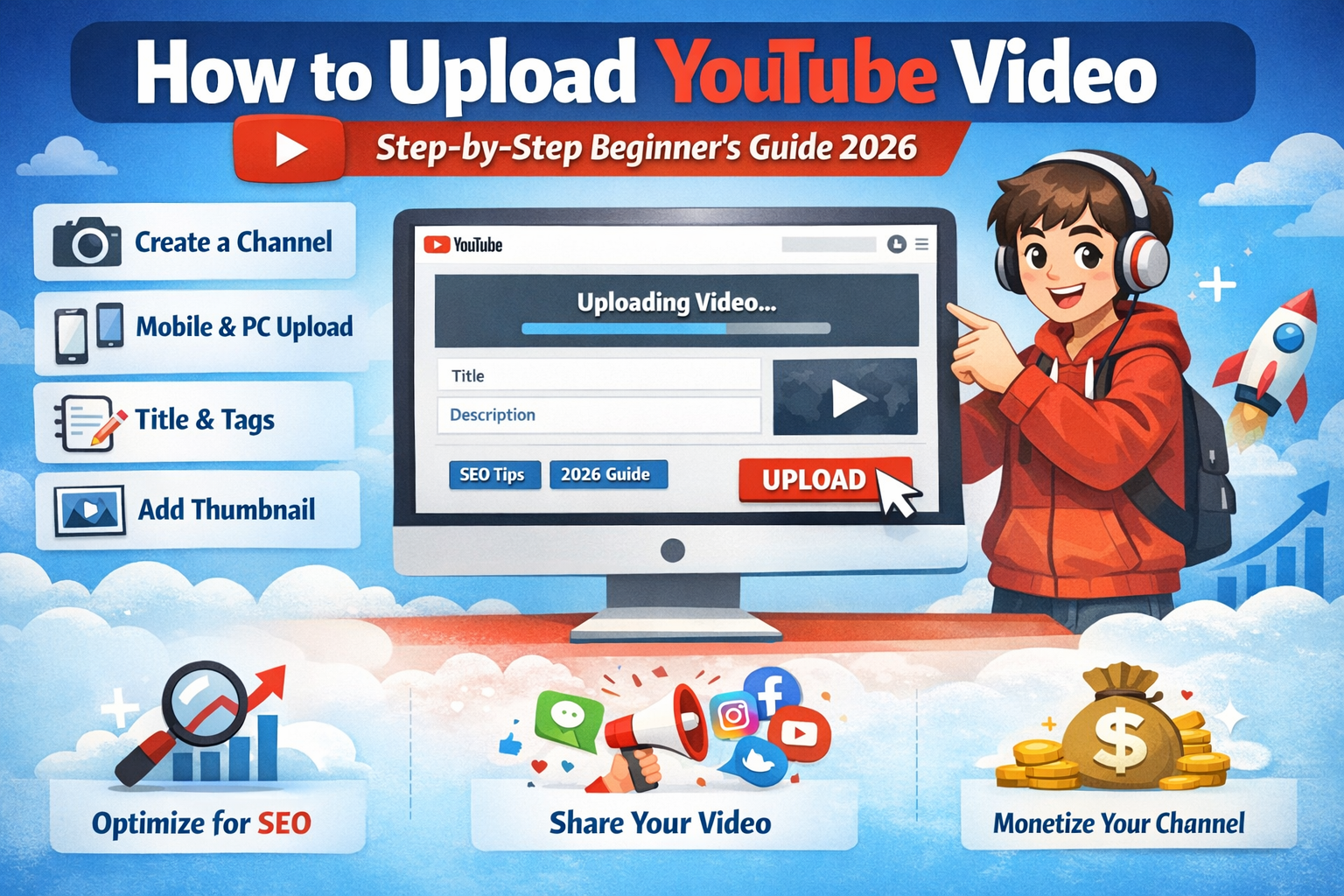
Complete beginner guide explaining how to upload YouTube video from mobile and PC with SEO tips, thumbnail setup, and monetization steps (2026).
How to Upload YouTube Video: Step-by-Step Beginner’s Guide (2026)
Uploading a video on YouTube is one of the best ways to share your knowledge, skills, entertainment, or business with the world. Whether you want to become a content creator, grow your brand, promote your online business, or simply share memories, YouTube gives you a powerful free platform.
In this complete beginner’s guide (2026), you will learn:
- How to create a YouTube channel
- How to upload a video from mobile
- How to upload a video from PC or laptop
- How to add title, description, and tags properly
- How to upload thumbnail
- Best SEO tips to get more views
- Common mistakes to avoid
Let’s start step-by-step. How to Upload YouTube Video
1. What You Need Before Uploading a YouTube Video
Before uploading your first video, make sure you have:
✅ 1. Google Account
To use YouTube, you need a Google account. If you use Gmail, you already have one.
✅ 2. YouTube Channel
You must create a channel before uploading videos.
✅ 3. Video File
Your video should be saved on your mobile or computer in formats like:
- MP4 (Recommended)
- MOV
- AVI
✅ 4. Good Internet Connection
Uploading large files requires stable internet. How to Upload YouTube Video
2. How to Create a YouTube Channel (Step-by-Step)
If you don’t have a channel yet, follow these steps:
- Go to YouTube.
- Sign in with your Google account.
- Click on your profile picture (top right corner).
- Click Create a Channel.
- Enter your channel name.
- Add profile picture and banner (optional but recommended).
- Click Create Channel.
Your channel is ready 🎉 How to Upload YouTube Video
3. How to Upload YouTube Video from Mobile (Android & iPhone)
Uploading from mobile is very easy.
Step-by-Step Process:
- Open the YouTube app.
- Tap the + (Plus) button at the bottom.
- Select Upload a Video.
- Choose your video from gallery.
- Add:
- Title
- Description
- Thumbnail (optional)
- Select audience (Made for kids or not).
- Click Upload.
Your video will start uploading.
Pro Tip:
Upload in Wi-Fi to avoid data loss and slow upload speed.
4. How to Upload YouTube Video from PC or Laptop
Uploading from computer gives you more professional control.
Step-by-Step Process:
- Open YouTube in browser.
- Sign in.
- Click Create (Camera icon with +).
- Click Upload Video.
- Select your video file.
- Add video details:
- Title
- Description
- Thumbnail
- Playlist
- Click Next.
- Add:
- Subtitles (optional)
- End screen
- Cards
- Choose visibility:
- Public
- Unlisted
- Private
- Click Publish.
Done ✅
5. How to Write a Powerful YouTube Title
Your title is very important for SEO and clicks.
Good Title Example:
How to Upload YouTube Video from Mobile (Step-by-Step Guide 2026)
Title Tips:
- Include focus keyword
- Keep it under 60 characters
- Make it clear and searchable
- Add year (2026)
6. How to Write YouTube Description Properly
Your description helps YouTube understand your video.
Structure Example:
First 2 Lines:
Include main keyword clearly.
Example:
Learn how to upload YouTube video step-by-step in 2026. This beginner guide explains mobile and PC upload process.
Middle Part:
Explain video content in detail.
Last Part:
- Add social links
- Add hashtags
- Add related keywords
7. How to Add Tags on YouTube
Tags help YouTube understand your topic.
Example Tags:
- how to upload youtube video
- youtube video upload 2026
- youtube beginner guide
- upload video from mobile
Don’t spam. Use relevant tags only.
8. How to Upload Custom Thumbnail
Thumbnail increases click-through rate (CTR).
How to Add Thumbnail:
While uploading video:
- Click Upload Thumbnail
- Select custom image (1280×720 recommended)
Thumbnail Tips:
- Use bold text
- Use bright colors
- Show face expression
- Keep design simple
You can design thumbnail using tools like:
- Canva
- Photoshop
9. Understanding YouTube Visibility Settings
When publishing video, you see 3 options:
🔹 Public
Anyone can see your video.
🔹 Unlisted
Only people with link can watch.
🔹 Private
Only you can see it.
Beginners should choose Public to get views.
10. Best SEO Tips to Rank Your YouTube Video in 2026
YouTube is the second largest search engine after Google.
Here’s how to rank:
✅ 1. Use Focus Keyword in:
- Title
- First 2 lines of description
- Tags
- Thumbnail text
✅ 2. Add Chapters
Example:
00:00 Introduction
01:20 Create Channel
03:00 Upload from Mobile
✅ 3. Increase Watch Time
- Avoid long boring intro
- Start with hook
- Deliver value fast
✅ 4. Add End Screen
Promote:
- Next video
- Subscribe button
✅ 5. Stay Consistent
Upload at least 1–2 videos per week.
11. Common Mistakes Beginners Make
❌ Uploading without title optimization
❌ Using copyrighted music
❌ Not adding thumbnail
❌ No description
❌ Inconsistent uploading
❌ Poor audio quality
Avoid these mistakes for faster growth.
12. Video Upload Requirements (2026 Updated)
- Maximum file size: 256 GB
- Maximum length: 12 hours
- Recommended resolution: 1080p or 4K
- Format: MP4 (Best)
13. After Upload – What to Do?
Uploading is not enough. You must promote.
Promote Your Video On:
- Telegram
- Website
Share link with friends and groups.
14. How Long Does YouTube Take to Process Video?
- Short videos: 5–15 minutes
- HD videos: 15–60 minutes
- 4K videos: More time
Processing time depends on file size and internet speed.
What is Analytics? – Analytics in 2026
Analytics is the systematic process of collecting, cleaning, analyzing, and interpreting data to discover useful information and support decision-making.
15. How to Monetize After Uploading Videos
After meeting eligibility:
- 1,000 Subscribers
- 4,000 Watch Hours (or Shorts requirement)
You can apply for monetization.
16. Frequently Asked Questions (FAQs)
Q1. Can I upload video without 1000 subscribers?
Yes, anyone can upload.
Q2. Can I edit video after uploading?
Yes, you can edit title, description, and thumbnail.
Q3. Can I upload from phone?
Yes, easily through YouTube app.
Q4. Is uploading free?
Yes, completely free.
17. Final Conclusion
How to Upload YouTube Video is simple if you follow the correct steps. First, create your channel. Then upload from mobile or PC. Add proper title, description, tags, and thumbnail. Optimize for SEO and stay consistent.
In 2026, YouTube is still one of the best platforms to build personal brand, online income, and business growth. Start today. Don’t wait for perfection. How to Upload YouTube Video
Your first video may not be perfect — but your consistency will make you successful 🚀